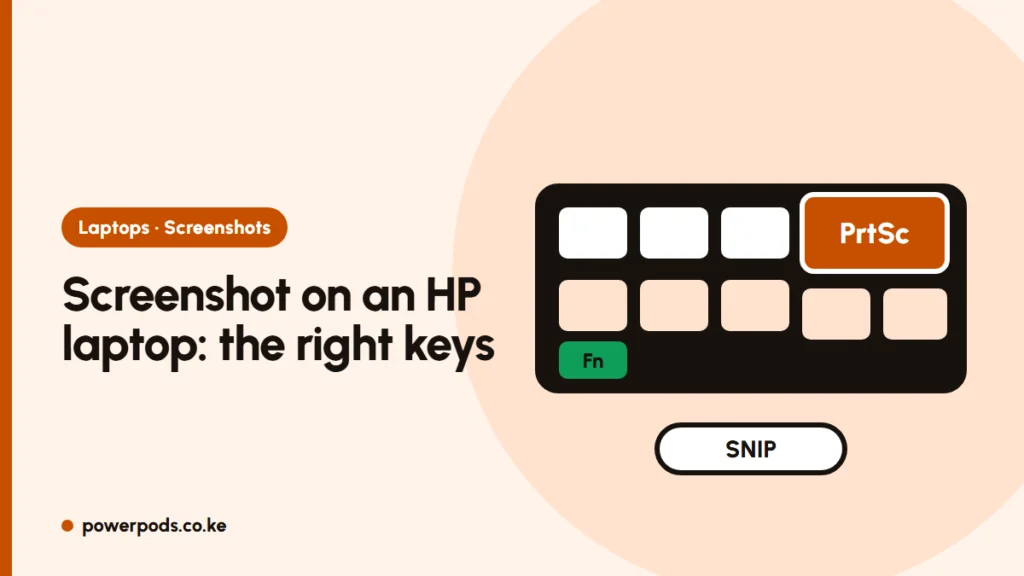
To take a screenshot on an HP laptop, press Windows + Shift + S and drag over the area you want, or press Windows + PrtSc to save the whole screen straight to your Pictures folder. Both work on every HP model running Windows 10 or 11.
Where PrtSc is on HP keyboards
HP moves the Print Screen key around depending on the model, and the label might read PrtSc, prt sc or show a small camera or scissors icon:
| HP range | Where to look |
|---|---|
| EliteBook, ProBook (common ex-UK models) | Top row, near the right end, often next to Delete or sharing a key with End or Insert |
| Pavilion, HP 14/15 | Top-right of the top row, beside Delete |
| Victus, Omen | Top row, right side |
| Some 14-inch models | Shared with an F-key, label printed in a different colour |
If the PrtSc label is in a different colour from the main key label, you need to hold Fn with it.
Fn combinations
If pressing PrtSc alone does nothing: – Try Fn + PrtSc. – Try Fn + Windows + PrtSc to save a full-screen image. – On some models, Fn + Esc turns on Fn Lock, which swaps what the top row does.
On an up-to-date Windows 11 laptop, PrtSc opens the Snipping Tool by default rather than copying the screen. That’s normal: it’s a Windows setting (Settings > Accessibility > Keyboard), not a fault.
Snip part of the screen
Windows + Shift + S is the most useful shortcut on any HP laptop. The screen dims and you choose: – Rectangle: drag a box – Window: click one window – Full screen – Freeform: draw any shape
The snip is copied, so you can paste it straight into WhatsApp Web, Word or an email with Ctrl + V. Click the pop-up to add arrows or crop it. Full guide: Snipping Tool on Windows.
Need video instead of a still image? See how to screen record on a laptop.
Where the file goes
| Method | Where it ends up |
|---|---|
| Windows + PrtSc | Pictures > Screenshots |
| Windows + Shift + S | Clipboard, and usually also Pictures > Screenshots on Windows 11 |
| PrtSc alone (when not set to Snipping Tool) | Clipboard only: paste it with Ctrl + V |
Can’t find a screenshot? Open File Explorer, click Pictures, then Screenshots. For Mac, Lenovo and Dell shortcuts, see our general guide to screenshots on a laptop.
Quick answers
Press Windows + Shift + S and select an area, or Windows + PrtSc to save the full screen to Pictures > Screenshots.
On the top row near the right end, labelled PrtSc or prt sc. On many EliteBooks and ProBooks it shares a key with another function, so hold Fn while pressing it.