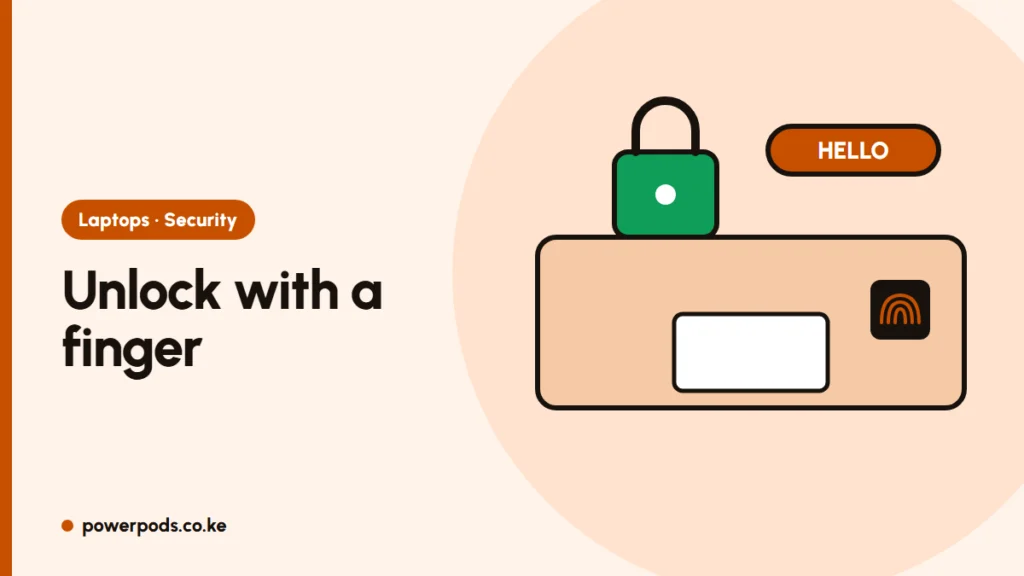
To set up fingerprint login with Windows Hello, go to Settings > Accounts > Sign-in options > Fingerprint recognition and follow the prompts. You’ll need a PIN first, and the whole setup takes about two minutes.
Before you start
- Find the reader: a small square sensor near the touchpad, or built into the power button on some models. Many EliteBooks, Latitudes and ThinkPads have one.
- Set a PIN: Windows Hello needs one as a backup. See set a password on a laptop.
Steps
- Press Windows + I and open Accounts > Sign-in options.
- Click Fingerprint recognition (Windows Hello) > Set up.
- Enter your PIN.
- Touch the sensor repeatedly, lifting and shifting your finger slightly each time, until it’s 100%.
- Click Add another finger and register a second finger (for example the other index finger).
Now you can unlock the laptop, approve some app sign-ins and confirm Microsoft Store purchases with a touch.
If the fingerprint option is missing
- Driver missing: open Device Manager > Biometric devices. If the reader isn’t listed, install the fingerprint driver from HP Support Assistant, Dell SupportAssist or Lenovo Vantage.
- Reader disabled in BIOS: some office laptops have it switched off. Check the security section of the BIOS.
- No reader at all: not every configuration has one. Check the model on the maker’s site.
If it stops working
- Clean the sensor with a dry cloth; dry, cracked or wet fingers read badly.
- In Sign-in options, click Remove under Fingerprint, then set it up again.
- Update the driver and restart.
- Use your PIN in the meantime. Forgot it? See forgot laptop password.
On a used laptop
Remove any fingerprints and accounts left by the previous owner. A fresh Windows install is the cleanest option; then set up your own fingerprint and change the password on any old accounts you keep.
Quick answers
Why can’t I set up fingerprint on Windows 11?
Usually the fingerprint driver is missing, or no PIN is set yet.
Is fingerprint login safe?
Yes. The fingerprint data stays on the laptop, and the PIN is the backup.
Can I add more than one fingerprint?
Yes. Use “Add another finger” in Sign-in options.