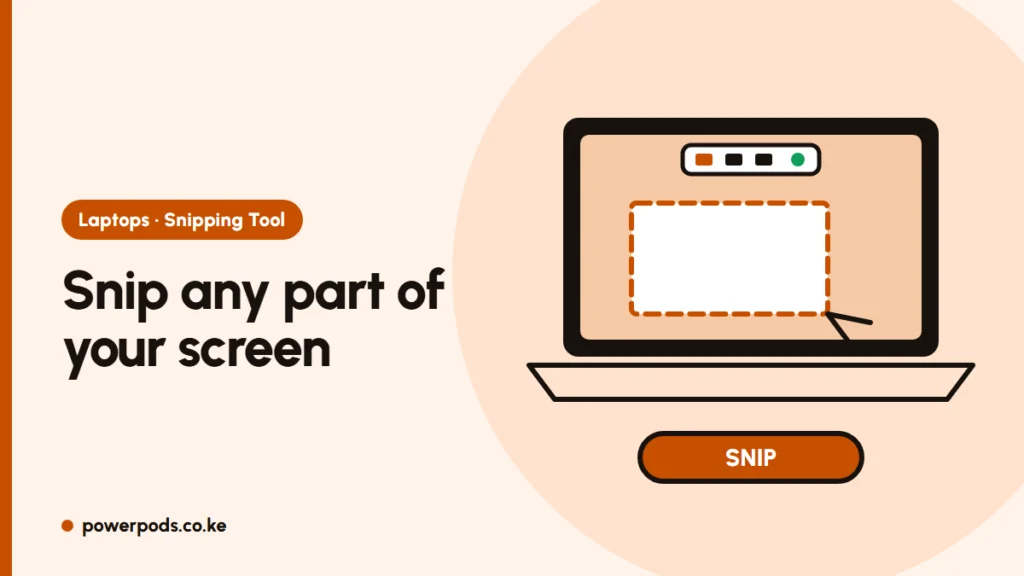
To use the Snipping Tool on Windows, press Windows + Shift + S, drag over the part of the screen you want, and the snip is copied, ready to paste. It’s built into Windows 11 and 10, so it works the same on HP, Dell, Lenovo, Acer and any other laptop.
For every other way to capture the screen, see how to screenshot on a laptop. On a Mac, read is there a Snipping Tool on Mac.
Open the Snipping Tool
- Windows + Shift + S: opens the snip bar straight away.
- Print Screen (PrtSc): on Windows 11 this also opens the snip bar on most laptops.
- Start menu: type “snipping tool” and open the app for more options, such as a delay.
Snip modes
The bar at the top of the screen offers:
| Mode | Captures |
|---|---|
| Rectangle | A box you drag |
| Window | One app window you click |
| Full screen | Everything on screen |
| Freeform | Any shape you draw |
Need a menu or tooltip that disappears when you click? Open the app, set a delay of 1–5 seconds, start the snip, then open the menu during the countdown.
Edit, copy text and share
Click the pop-up that appears after snipping to open it in the editor. From there you can:
- Mark up with pen and highlighter, crop, or erase.
- Save with Ctrl + S (PNG or JPG). On Windows 11, snips are also saved automatically to Pictures > Screenshots.
- Copy text (Windows 11): click Text actions and choose Copy all text. It reads text from the image, handy for an M-Pesa message, an error code or a PDF that won’t let you copy. Quick redact hides emails and phone numbers before you share.
- Share straight to email or other apps, or just paste (Ctrl + V) into WhatsApp Web, Word or Gmail.
Record with the Snipping Tool
On Windows 11, press Windows + Shift + R, drag over an area and click Start. It’s ideal for short clips. Sound settings, saving and other recording tools are covered in how to screen record on a laptop. Windows 10’s Snipping Tool has no recording.
Missing? Reinstall it
If the shortcut does nothing or the app is gone:
- Open Settings > Apps > Installed apps, find Snipping Tool, click the three dots, then Advanced options > Repair. If that fails, try Reset.
- Still broken? Uninstall it there, then open the Microsoft Store, search Snipping Tool and click Get or Install.
- On a work or school laptop, the IT admin may have removed it; ask them.
Quick answers
Press Windows + Shift + S, choose a mode, drag over the screen, then paste the snip or click it to edit and save.
It comes with Windows 11. If it’s missing, repair or reinstall it from Settings > Apps or the Microsoft Store.