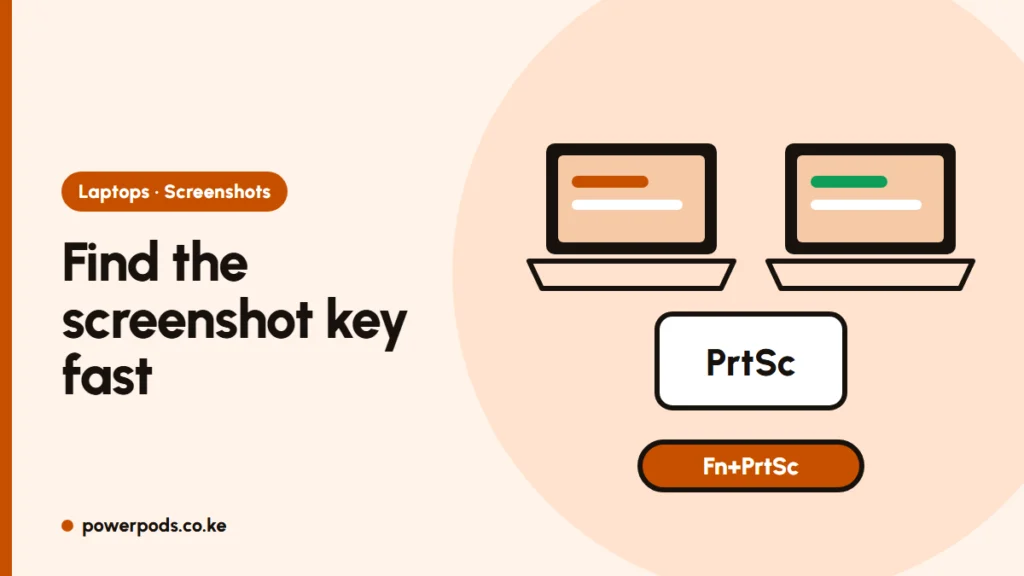
To screenshot on an Asus laptop or an Acer, press Windows + Shift + S, drag over what you want, then paste it into WhatsApp, Word or email. If you want a full-screen picture saved straight to a folder, press Windows + PrtSc; on many of these keyboards PrtSc shares a key, so you may need to hold Fn too.
Acer and Asus are among the most common budget and ex-UK laptops in Kenyan shops, and their keyboards hide the screenshot key in different places. This guide covers those brand quirks; for the general Windows and Mac methods, see how to screenshot on a laptop.
Acer (Aspire, Swift, Nitro)
- PrtSc sits on the top row, usually near Delete or Insert.
- Windows + PrtSc saves the whole screen to Pictures > Screenshots. The screen dims briefly to show it worked.
- On compact Aspire and Swift keyboards, PrtSc is printed on another key in a different colour. That colour means hold Fn first: Fn + PrtSc, or Windows + Fn + PrtSc to save.
- Alt + PrtSc copies only the active window, handy for an error message.
Asus VivoBook and ZenBook
- On most VivoBooks, PrtSc is on the top row, right side, often next to Delete. On some, it shares a key with another function.
- If pressing PrtSc does nothing, toggle the Fn lock (often Fn + Esc). Asus sets the top row to hotkeys like brightness by default, so PrtSc may need Fn.
- Windows + PrtSc saves to Pictures > Screenshots, as on any Windows laptop.
- Some ZenBook models have a small number pad built into the touchpad. It doesn’t affect screenshots, so ignore it.
Toshiba and Surface
Toshiba (Satellite, Tecra, Portégé, now Dynabook): PrtSc usually shares a key with End or Insert, so press Fn + PrtSc. Windows + Fn + PrtSc saves a file.
Microsoft Surface: – Surface Laptop: has a PrtSc key on the top row. Windows + PrtSc saves. – Surface Pro and Go with a Type Cover: older covers have no PrtSc key. Use Fn + Spacebar for PrtSc, or Windows + Shift + S. – Surface as a tablet (no keyboard): press Power + Volume Up together.
Universal fallback: Windows + Shift + S
This shortcut works on every Windows 10 and 11 laptop, whatever the brand:
- Press Windows + Shift + S. The screen dims and a small bar appears at the top.
- Pick rectangle, window or full screen, then drag.
- The shot goes to the clipboard. Click the pop-up in the corner to mark it up and save it, or just press Ctrl + V to paste.
On Windows 11, pressing PrtSc alone may also open this tool, because that is the default setting. For delayed shots, screen recording and where files are saved, see our Snipping Tool guide.
If nothing happens
- Try with and without Fn. This fixes most “PrtSc not working” cases on Acer and Asus.
- Check the clipboard. PrtSc on its own often copies without saving; open Paint and press Ctrl + V.
- Close OneDrive or Dropbox prompts. These apps can take over PrtSc and save screenshots to their own folder.
Quick answers
Press Windows + Shift + S and drag, or Windows + PrtSc to save the whole screen. If PrtSc does nothing, hold Fn or toggle Fn lock with Fn + Esc.
Press Windows + PrtSc to save to Pictures > Screenshots. On smaller Acer keyboards where PrtSc is a second label on another key, add Fn.
Press the Power and Volume Up buttons together.