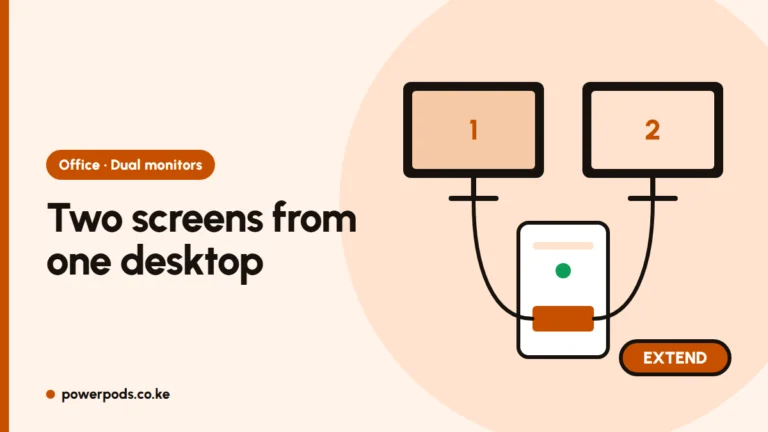
To connect two monitors to a laptop, use two different video outputs (for example HDMI plus USB-C or DisplayPort), or one USB-C/Thunderbolt port into a dock with two video outputs. Then press Windows + P and choose Extend. Check what your ports can do before buying anything.
Can your laptop drive two screens?
Most modern Windows laptops can run two external monitors, but not all. Look at the ports:
- HDMI: one screen.
- USB-C with a DisplayPort or lightning-bolt icon: carries video. A plain USB-C port with no icon may be data only; check the laptop’s spec sheet.
- Thunderbolt: usually handles two screens from one port: what is a Thunderbolt port?
- DisplayPort / mini DisplayPort / VGA: common on business laptops.
Many ex-UK business laptops (EliteBook, Latitude, ThinkPad) have HDMI plus DisplayPort or VGA, which makes dual screens easy.
MacBook note: base Apple-chip MacBook Airs and some base MacBook Pros support only one external display (some newer models allow two with the lid closed). Check Apple’s spec page for your model.
Port combinations that work
| Laptop ports | How to connect |
|---|---|
| HDMI + USB-C (video) | HDMI to monitor 1; USB-C-to-HDMI cable to monitor 2 |
| HDMI + DisplayPort | One cable each |
| HDMI + VGA | One each; VGA is lower quality but fine for documents |
| One Thunderbolt/USB-C only | Dock with two video outputs |
| DisplayPort + monitors with DP out | Daisy-chain (DisplayPort MST, Windows only) |
One HDMI port only? A cheap HDMI splitter shows the same picture on both screens; it won’t extend. To extend, use a second video port, a dock or a USB display adapter.
Docks and USB display adapters
- USB-C/Thunderbolt docks add two HDMI or DisplayPort outputs plus charging, USB and Ethernet. See dual monitor docking stations.
- USB display adapters (DisplayLink-type) work even from a plain USB-A port, but need a driver installed and aren’t ideal for video or games.
No spare monitor? An old laptop can serve as one: use a laptop as a second monitor.
Arrange displays in Windows
- Connect both monitors and switch them on.
- Press Windows + P and pick Extend.
- Go to Settings > System > Display. Drag the numbered boxes so they match where the screens sit on your desk.
- Click a screen and tick Make this my main display for the one you’ll use most.
- Set each monitor’s resolution to “Recommended” and scale to taste.
Planning the whole desk? See home office setup.
Troubleshooting a blank second screen
- Check the monitor’s input/source button matches the cable (HDMI 1, DP, VGA).
- In Display settings, click Detect under “Multiple displays”.
- Try a different cable; cheap USB-C adapters often fail.
- Update the graphics driver from the laptop maker’s site.
- Using a dock or DisplayLink adapter? Install its driver.
Quick answers
Usually yes, if it has two video outputs (HDMI, USB-C with video, DisplayPort, Thunderbolt) or one Thunderbolt/USB-C port with a suitable dock.
Use HDMI for one monitor and a USB-C video cable, dock or USB display adapter for the other. A splitter only duplicates the picture.
Press Windows + P and choose Extend, then arrange the screens in Settings > System > Display.