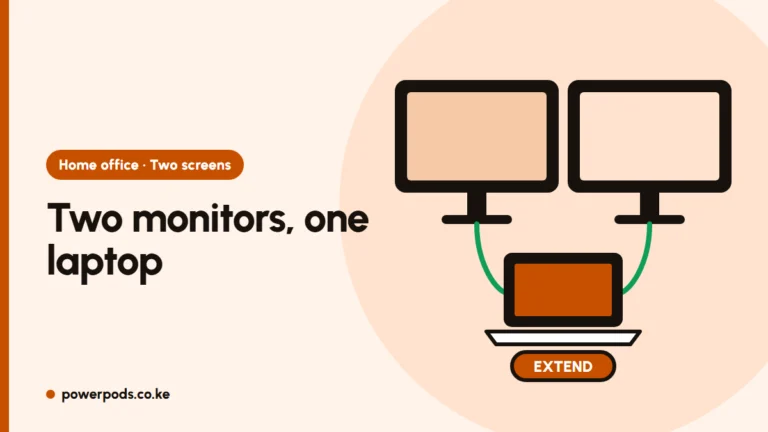
To connect two monitors to a desktop PC, plug each monitor into a separate video port on the back of the tower (HDMI, DisplayPort, VGA or DVI), then open Display settings and choose “Extend these displays”. The ports don’t have to match: one HDMI and one VGA or DisplayPort works fine.
Check graphics card ports
Look at the back of the tower:
- Horizontal ports lower down (in a long metal strip) belong to a graphics card.
- Vertical ports near the USB and network sockets belong to the motherboard.
Match these to each monitor’s inputs:
| Port | Carries | Notes |
|---|---|---|
| HDMI | Video + sound | Most common on modern monitors |
| DisplayPort | Video + sound | Common on office desktops (HP, Dell, Lenovo) |
| DVI | Video only | Older monitors and cards |
| VGA (blue, 15 pins) | Video only | Still common on older office screens; softer picture |
Office desktops in Kenya, especially ex-UK HP, Dell and Lenovo towers, very often have one DisplayPort plus one VGA, or two DisplayPorts, and no HDMI at all. That’s still enough for two monitors.
Motherboard vs GPU outputs
If the PC has a graphics card, plug both monitors into the card. On most desktops the motherboard’s ports switch off when a card is installed, so a monitor plugged there shows “No signal”.
- No graphics card? Use the motherboard’s ports; most office PCs support two screens this way.
- Want one screen on the card and one on the motherboard? Some BIOS menus have an option such as iGPU Multi-Monitor, but it’s simpler to use two ports on the card.
Only one HDMI? Options
- Use a different port for the second monitor: HDMI for one, and DisplayPort, DVI or VGA for the other. A DisplayPort-to-HDMI cable is easy to find in town.
- Adapter for the monitor: if your monitor only has VGA, use a DisplayPort-to-VGA or HDMI-to-VGA adapter (active, with a chip inside).
- USB display adapter: a USB 3.0 or USB-C to HDMI adapter with its own driver (often called DisplayLink) adds an extra screen. Fine for office work, not for gaming.
- Daisy-chain: some DisplayPort monitors have a DP-out port that feeds a second monitor, if the graphics card supports it.
An HDMI splitter only copies the same picture to both screens. It can’t give you two separate desktops.
Set up display order
- Right-click the desktop > Display settings.
- Click Identify: big numbers appear on each screen.
- Drag the boxes so they match how the monitors sit on your desk, then click Apply.
- Under Multiple displays, choose Extend these displays. Windows + P switches quickly between Duplicate and Extend.
- Click the screen you want for the taskbar and Start menu and tick Make this my main display.
If one screen looks blurry, set it to its recommended resolution in the same window.
Using a laptop instead? See how to connect two monitors to a laptop. For stands, heights and spacing, see our dual monitor desk layout guide.
Quick answers
Plug each monitor into a separate video port, on the graphics card if you have one, then choose Extend these displays in Display settings.
Yes. Use HDMI for one and DisplayPort, DVI or VGA (with an adapter if needed) for the other, or add a USB display adapter. A splitter only duplicates the picture.