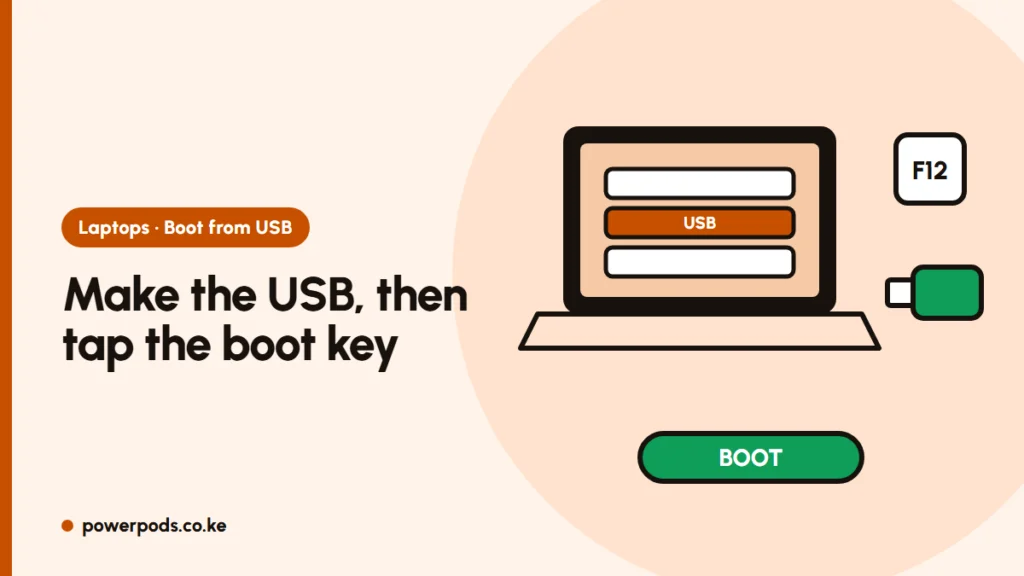
To boot from USB on Windows 11, make the stick with Microsoft’s free Media Creation Tool, plug it in, restart, and tap your laptop’s boot menu key (usually F12, or Esc then F9 on HP). If Windows still starts, you can also pick the USB from Windows’ own recovery menu.
What you need
- A USB flash disk of at least 8 GB. Everything on it will be erased, so copy files off first.
- A working Windows PC with internet. The download is several gigabytes, so use Wi-Fi or a big data bundle rather than daily bundles.
- Use your own flash disk, not one that has been passed around cyber cafés. Shared flash disks often carry malware.
Create the USB with the Media Creation Tool
- Go to Microsoft’s Download Windows 11 page and choose Create Windows 11 Installation Media > Download now.
- Run the tool, accept the licence and keep the recommended language and edition (or untick it to choose).
- Pick USB flash drive, select your flash disk, and wait. It downloads Windows and writes it to the stick.
- When it says the USB is ready, click Finish and remove it safely.
That is the whole “flash Windows 11 to USB” step. The finished stick boots on modern UEFI laptops without extra settings. Before installing, check the laptop meets the Windows 11 system requirements, because the official USB won’t install on unsupported hardware.
Boot menu keys by brand
Shut down fully, plug in the USB, switch on and tap the key repeatedly from the moment the logo appears:
| Brand | Boot menu key (most models) |
|---|---|
| HP | Esc, then F9 |
| Dell | F12 |
| Lenovo | F12 (or Fn+F12); many IdeaPads have a small Novo button |
| Acer | F12 (on some models it must first be enabled in BIOS, usually via F2) |
| Asus | Esc or F8 |
Keys vary by model and age, so if one doesn’t work, check your model’s support page. In the menu, choose the entry with your flash disk’s name or “USB” / “UEFI USB”.
Boot from USB inside Windows
If the laptop still reaches the desktop, this avoids guessing keys:
- Open Settings > System > Recovery.
- Next to Advanced startup, click Restart now.
- On the blue screen, choose Use a device, then pick your USB drive.
The laptop restarts straight into the USB. From there, follow how to install Windows 11 for the setup steps.
USB not listed? Try another port (a USB-A port on the laptop itself, not a hub), remake the stick, or check in the BIOS that USB boot is allowed. Ex-corporate laptops sometimes have USB boot disabled.
Quick answers
Plug in the USB, restart and tap the boot menu key (F12 on most Dell, Lenovo and Acer; Esc then F9 on HP). Or go to Settings > System > Recovery > Advanced startup > Use a device.
Download Microsoft’s Media Creation Tool, choose USB flash drive, and select a flash disk of 8 GB or more. It erases the stick and writes Windows to it.
Usually not. A USB made with Microsoft’s tool boots with Secure Boot on.