Before you factory reset or format a laptop, back up your files to an external drive or cloud storage, then save the things people forget: browser passwords, licence keys and the BitLocker recovery key. A reset or format wipes the drive, and what isn’t copied off is usually gone. Back up your laptop before a factory reset, not after.
What to save (beyond documents)
Tick these off:
- Personal folders: Desktop, Documents, Downloads, Pictures, Videos and Music. Check the Downloads folder; it often holds the only copy of PDFs and receipts.
- Files saved elsewhere: project folders on D: or in odd places like C:\ root, and anything inside apps such as Tally, QuickBooks or offline email (Outlook .pst files).
- Browser data: sign in to Chrome or Edge sync, or export passwords and bookmarks.
- WhatsApp Desktop: nothing to save on the laptop. Chats live on your phone, so back up WhatsApp on the phone instead.
- Photos from phones that you dumped onto the laptop and never copied anywhere else.
For phones, use our phone backup-before-reset checklist instead.
Quick backup steps
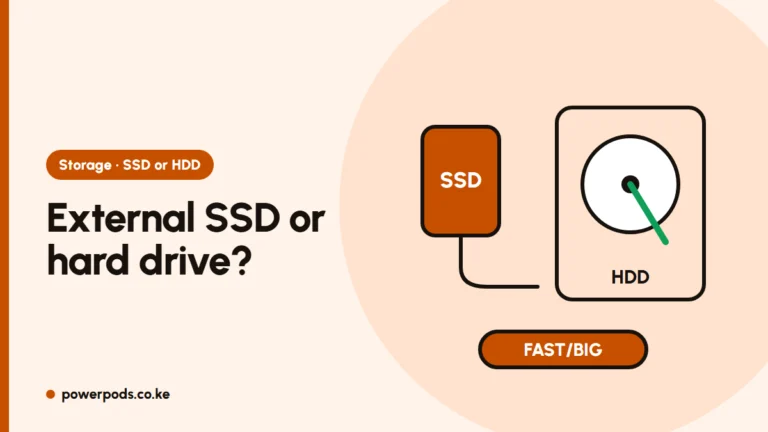
- Plug in an external drive with more free space than your files. An SSD copies faster; see external SSD vs external hard drive.
- Copy your folders across (drag and drop is fine), or upload them to OneDrive or Google Drive on Wi-Fi.
- Open a few copied files on another computer to confirm they work.
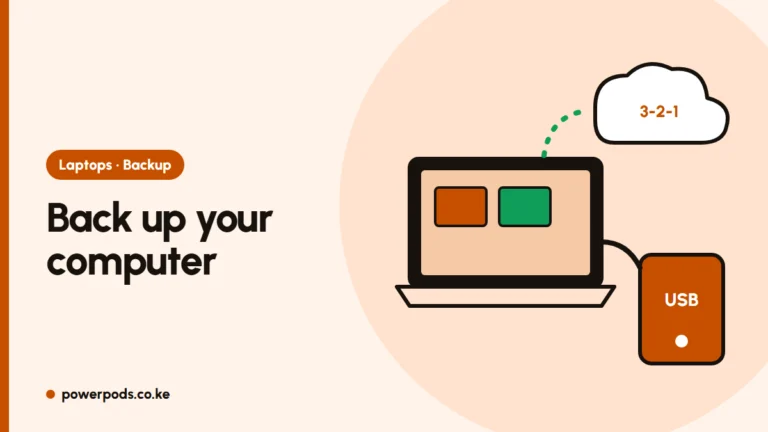
Full methods are in how to back up your computer.
Licences and passwords
- Windows licence: a reset on the same laptop usually reactivates automatically once it’s online, because the digital licence is tied to the hardware. Note the edition (Home or Pro) in Settings > System > Activation.
- Microsoft Office and other paid software: note the account or product key you bought it with.
- BitLocker or device encryption: if it’s on, save the recovery key. It’s usually in your Microsoft account (account.microsoft.com, Devices) and Microsoft can’t recover a lost key for you.
- Know your Microsoft account password before you start, as setup asks for it.
Selling the laptop afterwards? Choose Remove everything during the reset and sign out of all accounts. Check how much your laptop is worth before you list it.
If the laptop won’t boot
You can usually still get files off:
- It powers on but Windows won’t load: boot it from a Linux or Windows USB stick (made on another PC) and copy files to an external drive from there.
- It won’t power on at all: remove the drive and put it in a USB enclosure or adapter that matches its type (2.5″ SATA or M.2), then copy files on another computer.
- The drive clicks, isn’t detected, or is BitLocker-locked without a key: stop and go to a data recovery specialist. Repeated tries can make a failing drive worse.
Handing it to a repair shop? Back up first if you can, and ask what will be wiped.
Quick answers
Copy your personal folders to an external drive or cloud storage, sync or export browser passwords, note licence keys, and save the BitLocker recovery key. Then check the copies open.
If it powers on, boot it from a USB stick and copy files to an external drive. If it won’t power on, take the drive out and read it in a USB enclosure on another computer.