To back up your laptop to Google Drive, install Google Drive for desktop, sign in and choose the folders to back up; to use OneDrive, open its settings and turn on folder backup for Desktop, Documents and Pictures. After that, both copy new and changed files automatically whenever you’re online.
Updated 30 October 2026.
Sync vs backup: the difference
Sync is not a full backup. Both apps keep the cloud copy matching your laptop, so if you delete a file or ransomware scrambles it, the change can sync too. Deleted files sit in the cloud’s bin for a limited time, then they’re gone.
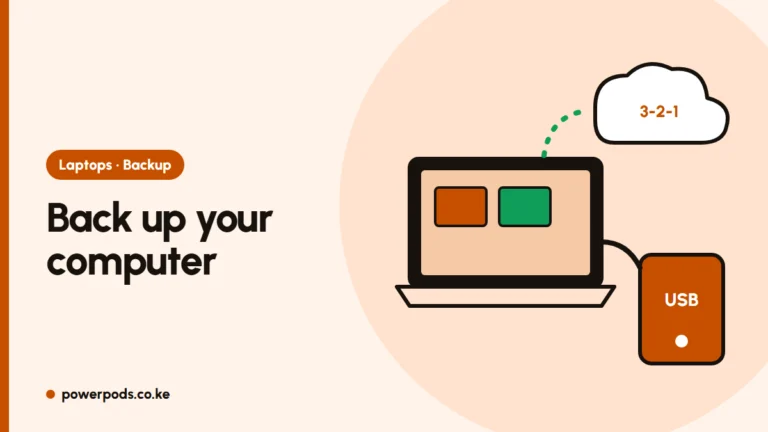
That’s why cloud sync works best as one layer, alongside an occasional copy on an external drive. Our guide to backing up your computer covers the full plan.
Google Drive for desktop
- Download Google Drive for desktop from Google’s website and sign in with your Gmail account.
- Click the Drive icon in the taskbar, then the gear > Preferences.
- Under My Computer (or My Laptop), click Add folder and pick Documents, Desktop or a work folder.
- Choose Sync with Google Drive for all files, or Back up to Google Photos for photos and videos only.
- Click Done > Save. The first upload starts straight away.
Your files then appear on drive.google.com under Computers, separate from the rest of your Drive.
OneDrive folder backup
OneDrive comes built into Windows 10 and 11.
- Click the cloud icon in the taskbar and sign in with a Microsoft account (Outlook or Hotmail works).
- Open Settings > Sync and backup > Manage backup.
- Switch on Desktop, Documents and Pictures (newer versions add Music and Videos).
- Click Start backup.
Files stay in the same place on your laptop, so nothing about how you work changes.
Free storage limits
| Service | Free space | Shared with |
|---|---|---|
| Google Drive | 15 GB | Gmail and Google Photos |
| OneDrive | 5 GB | Outlook attachments |
Free space fills fast if you back up photos and videos. Check your folder sizes first (right-click > Properties). If you need more, both sell monthly storage plans; Google One can be paid through Google Play, which accepts M-Pesa in Kenya. Check current KES prices in the app before you pay. Not sure cloud is right for you? Compare it with a drive in cloud vs external hard drive.
Saving data on uploads
The first backup is the big one. Tens of gigabytes can wipe out a mobile bundle in an afternoon.
- Run the first upload on unlimited home fibre, or leave it overnight.
- Mark hotspots as metered: Settings > Network & internet > your Wi-Fi > Metered connection. OneDrive pauses on metered connections by default.
- Limit upload speed: Google Drive’s Preferences let you cap bandwidth, and OneDrive has an upload rate limit under Settings > Sync and backup > Advanced settings.
- Skip what you don’t need: leave out Downloads, installers and films you can get again.
After the first upload, daily changes are small.
Quick answers
Install Google Drive for desktop, sign in, go to Preferences > My Computer > Add folder, pick your folders and save. It then backs up automatically.
Open OneDrive settings > Sync and backup > Manage backup, switch on Desktop, Documents and Pictures, and click Start backup.
Only for documents. Google gives 15 GB shared with Gmail and Photos; OneDrive gives 5 GB. Photos and videos usually need a paid plan or an external drive.