To back up to an external hard drive, plug it in and either copy your folders across by hand or turn on File History (Windows) or Time Machine (Mac) so it backs up automatically. For a complete copy you can restore if the laptop dies, also make a system image now and then.
Updated 30 October 2026.
Pick the right drive
- Size: at least twice the space your files use, so there’s room for older versions. Check used space in File Explorer under This PC.
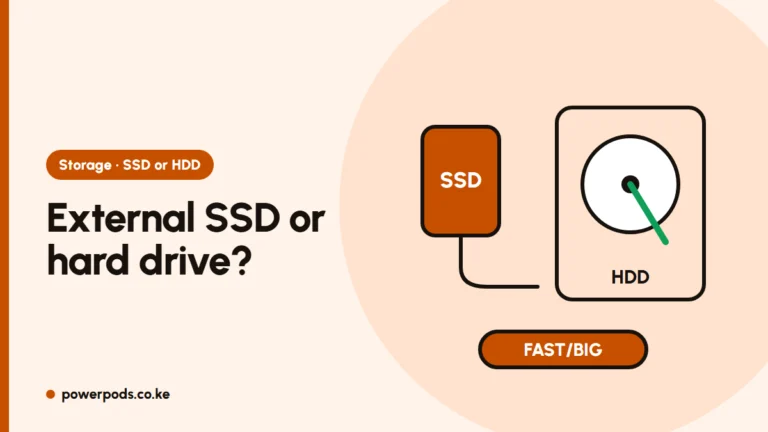
- HDD or SSD: a portable hard drive is cheapest per gigabyte and fine for backups; a portable SSD is faster and survives knocks better. More in SSD vs HDD.
- Typical prices in Kenya (vary by brand and shop): a 1 TB portable hard drive costs roughly KES 7,000–11,000, a 2 TB about KES 9,000–15,000, and a 1 TB portable SSD around KES 10,000–18,000.
Quick manual copy
Good before a repair or Windows reinstall.
- Plug in the drive and open File Explorer (or Finder on a Mac).
- Make a folder on the drive named with today’s date.
- Copy Documents, Desktop, Pictures, Videos and Downloads into it, plus any work folders.
- When it finishes, eject the drive safely before unplugging.
Manual copies only protect what you remember to copy, so set up automatic backups too.
Automatic backups with File History
File History saves new versions of your files on a schedule while the drive is plugged in.
- Open Control Panel > System and Security > File History.
- Select your external drive and click Turn on.
- Under Advanced settings, choose how often to save copies (every hour is the default) and how long to keep them.
It backs up your user folders (Documents, Pictures, Desktop and more). To restore, open File History and click Restore personal files, then pick the version you want.
Can backups run automatically? Yes, but only while the drive is connected. On a laptop, plug it in once a week and leave it for an hour.
Full system image
A system image copies all of Windows, your apps and files, so you can restore the whole laptop to a new or repaired drive.
- Open Control Panel > Backup and Restore (Windows 7). The name is old, but it still works on Windows 10 and 11.
- Click Create a system image, choose your external drive and click Start backup.
- Offer to make a system repair disc or USB recovery drive if prompted.
Microsoft no longer develops this tool, so treat it as an extra. Restore from Settings > System > Recovery > Advanced startup > Troubleshoot > Advanced options > System Image Recovery.
Mac: Time Machine
- Plug in the drive. It may need erasing, so use an empty one.
- Open System Settings > General > Time Machine and click Add Backup Disk.
- Pick the drive. Backups then run every hour while it’s connected.
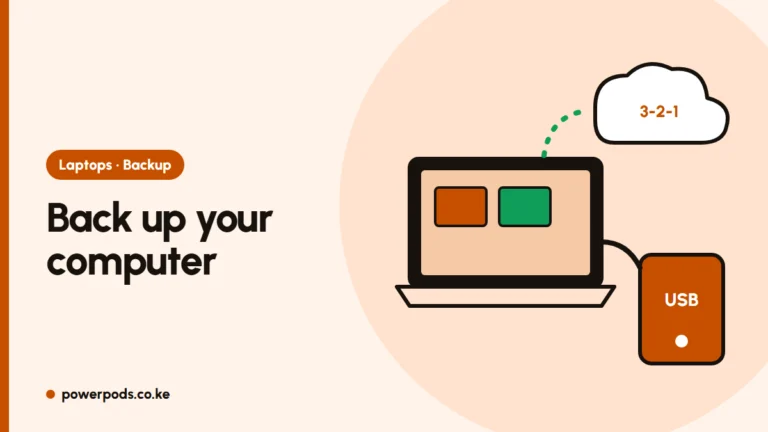
For the full plan, including the 3-2-1 rule, see how to back up your computer. Want a copy off-site too? Add Google Drive or OneDrive, and store the drive away from your laptop bag, so one theft or flood doesn’t take both.
Quick answers
Plug in the drive and copy your main folders across, or turn on File History (Windows) or Time Machine (Mac) to do it automatically.
Yes. File History and Time Machine back up on a schedule, every hour by default, whenever the drive is plugged in.