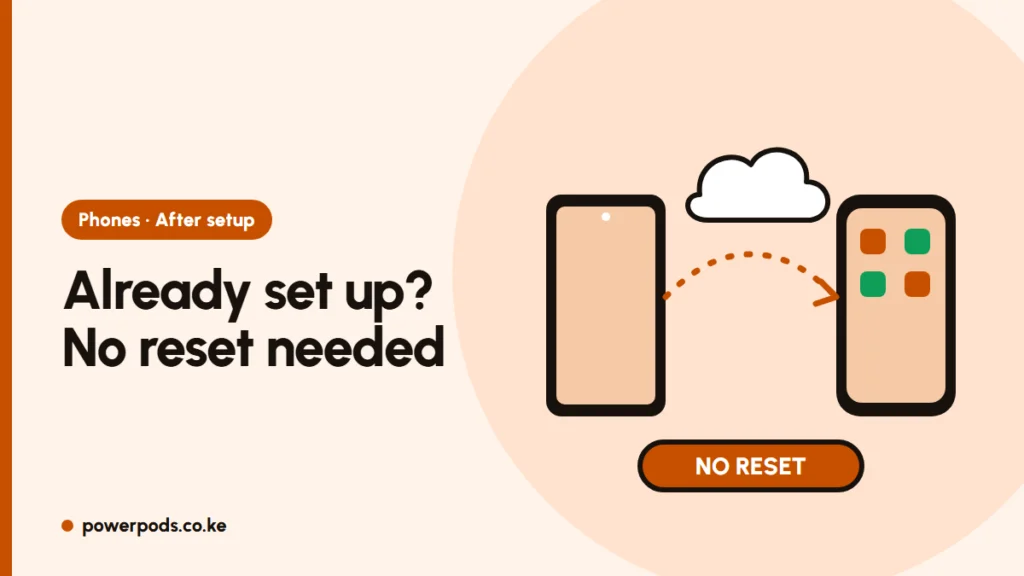
You can move data from Android to iPhone after setup without a reset: sign in to your Google account on the iPhone and most of your contacts, calendar, photos and files come across over the internet. Only WhatsApp chats and SMS history really need Move to iOS, which works only on a fresh or erased iPhone.
Why Move to iOS needs a fresh iPhone
Apple’s Move to iOS app runs only on the iPhone’s Apps & Data setup screen. Once you’ve reached the home screen, that option is gone until you erase the phone. That’s why “after setup” needs a different route. For the full first-time method, see our main guide to transferring data from Android to iPhone.
Options that need no reset
Do this on Wi-Fi. Photos and videos can run to tens of GB, which would wipe out a Safaricom or Airtel bundle.
1. Contacts and calendar (Google account) 1. On the iPhone: Settings > Apps > Contacts > Contacts Accounts > Add Account > Google (on older iOS, Settings > Contacts > Accounts). 2. Sign in and switch on Contacts and Calendars. If some contacts are missing, they were saved to the SIM or phone; see moving contacts to iPhone.
2. Photos and videos (Google Photos) 1. On Android, make sure backup is on and finished in Google Photos; our Google Photos backup guide shows how. 2. Install Google Photos on the iPhone and sign in. Everything appears straight away. 3. To keep copies in the iPhone’s own Photos app, select items and tap Download (or Save to device). Do it in batches.
3. Files and documents Install Google Drive on the iPhone, or upload files from Android to Drive first. Downloads and PDFs can then be saved to the iPhone’s Files app.
4. Music and big video folders Copy them to a computer by USB, then add them to the iPhone through iTunes or the Apple Devices app.
5. Apps Download the same apps from the App Store and sign in. M-Pesa and bank apps will ask you to verify again, usually by SMS, so keep your SIM in the iPhone.
When to reset and start again
Erasing the iPhone and using Move to iOS is worth it if you need:
- WhatsApp chat history. WhatsApp’s Android-to-iPhone transfer runs only through Move to iOS. Details: WhatsApp from Android to iPhone.
- Your old SMS messages, which only Move to iOS can bring into the Messages app.
If you’ve only had the iPhone a day or two, a reset costs you little. Settings > General > Transfer or Reset iPhone > Erase All Content and Settings, then choose From Android during setup.
Backup first
Before you erase anything:
- Back up the iPhone to iCloud if you’ve already taken new photos or chats on it.
- Back up WhatsApp on the Android to Google Drive as a safety net.
- Keep the Android phone untouched until you’ve checked that contacts, photos and chats arrived.
Quick answers
Yes. Contacts, calendar, photos and files move through your Google account and apps without a reset. WhatsApp chats and SMS need Move to iOS on a freshly erased iPhone.
Add your Google account in iPhone Settings for contacts and calendar, install Google Photos and Google Drive, and sign in to your apps again.
Back them up to Google Photos on Android over Wi-Fi, sign in to Google Photos on the iPhone and download the ones you want to keep on the phone.