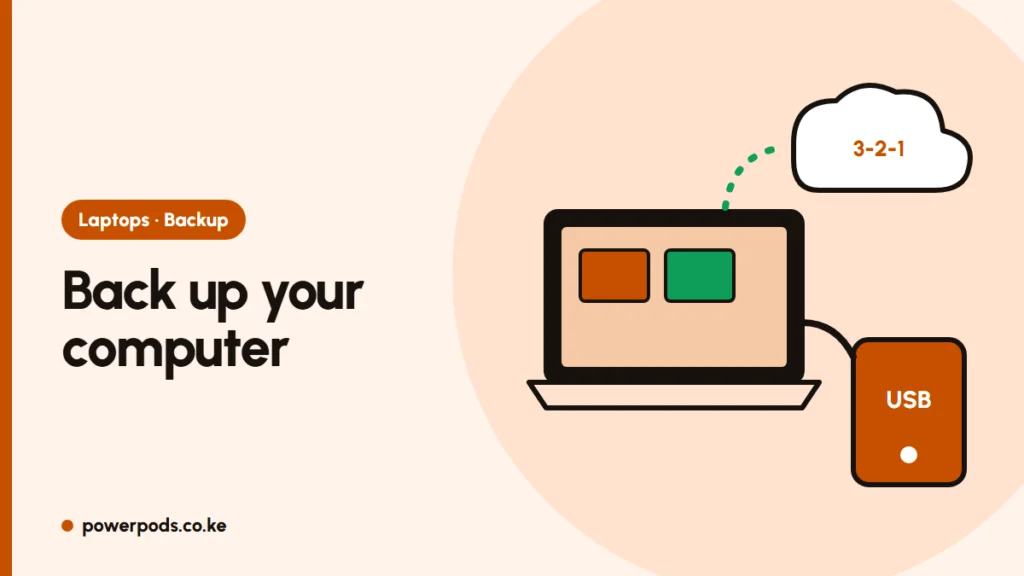
The simplest way to back up your computer is to let a built-in tool copy your files to an external drive automatically (File History on Windows, Time Machine on Mac) and keep a second copy of important folders in the cloud. Set it up once, then check it monthly.
Updated 29 October 2026.
What to back up
Programs can be reinstalled; your own files can’t. Focus on:
- Documents, Desktop, Pictures, Videos and Downloads
- Work or school project folders, wherever they live
- Browser bookmarks and passwords (turn on browser sync)
- Licence keys, accounting files and anything saved by apps you use for work
The 3-2-1 rule in plain words
- 3 copies of your important files: the original plus two backups.
- 2 different places, for example an external drive and the cloud.
- 1 copy away from the computer, in the cloud or a drive kept somewhere else.
Why it matters in Kenya: a thief who takes your laptop usually takes the drive sitting next to it, and a power surge can kill both if they are plugged in together. One copy away from your desk protects you from both.
Windows backup tools
- File History (Windows 10 and 11): plug in an external drive, open Control Panel > File History, choose the drive and click Turn on. It saves new versions of your files every hour while the drive is connected, so you can restore an older copy.
- Windows Backup app (Windows 11): backs up your folders, settings and app list to OneDrive. A free Microsoft account includes only 5 GB, so most people need a paid plan or should back up just Documents and Desktop.
- OneDrive or Google Drive folder sync: keeps chosen folders in the cloud as you work. See back up to Google Drive or OneDrive.
Mac: Time Machine
- Plug in an external drive.
- Open System Settings > General > Time Machine and click Add Backup Disk.
- Leave the drive connected for the first backup.
Time Machine then keeps hourly backups for the past day, daily ones for the past month and weekly ones until the drive is full, deleting the oldest first. iCloud Drive adds 5 GB of free cloud space for key folders.
Cloud vs external drive
| External drive | Cloud | |
|---|---|---|
| Cost | One-off; a 1 TB portable hard drive is typically around KES 6,000–9,000 | Small free tier, then a monthly fee |
| Speed | Fast, no internet needed | Depends on your connection |
| Data use | None | Uses lots of data; first upload can be tens of GB |
| Risks | Theft, drops, surges | Forgotten passwords, unpaid plans |
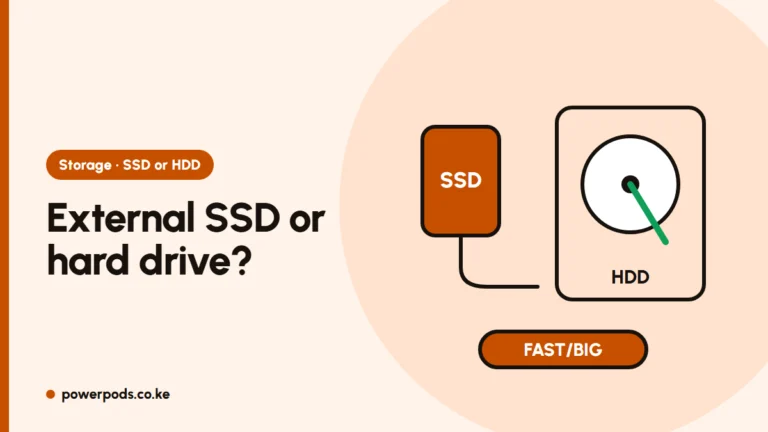
Best answer: use both. Run the first cloud upload on home Wi-Fi overnight, not on a mobile bundle. Full comparison: cloud vs external hard drive. Step-by-step drive setup: back up to an external hard drive.
A monthly backup routine
Pick one day a month (the 1st is easy to remember):
- Plug in the external drive and let File History or Time Machine catch up.
- Check the last backup date in the tool.
- Open one random file from the backup to prove it works.
- Check your cloud app says “up to date”.
- Unplug the drive and store it away from the laptop.
Before you reset or sell a computer, run a full backup first: back up before a factory reset.
Quick answers
Turn on File History (Windows) or Time Machine (Mac) with an external drive, and sync your main folders to a cloud service.
Follow the 3-2-1 rule: the laptop itself, an external drive kept separately, and a cloud copy of your most important folders.
Let the automatic tools run continuously, connect the external drive at least once a week if you can, and do a full check once a month.