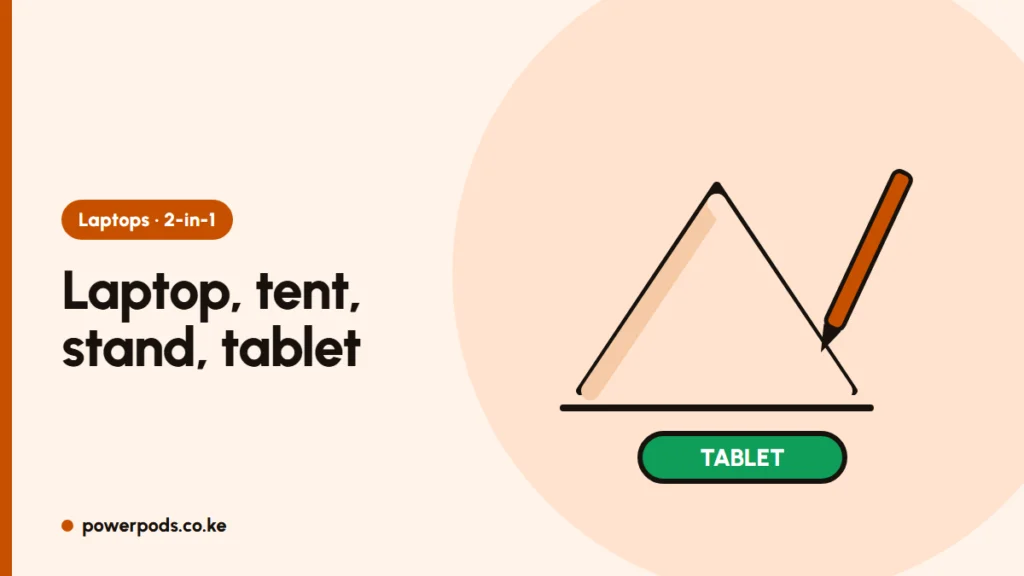
To use x360 tablet mode, fold the screen all the way back: Windows 11 switches to tablet posture automatically, turns off the keyboard and touchpad, and shows the touch keyboard when you tap a text box. Fold it back to laptop shape to switch the keyboard on again.
The four positions
- Laptop: normal use.
- Tent: an upside-down V, for watching videos or recipes in the kitchen.
- Stand: keyboard face down, screen towards you; good for presentations and video calls.
- Tablet: folded flat, for reading, notes and drawing.
In tent, stand and tablet positions the keyboard is disabled so you don’t press keys by accident.
Make tablet mode comfortable
- Touch keyboard: if it doesn’t pop up, go to Settings > Time & language > Typing > Touch keyboard and set it to show when no keyboard is attached.
- Rotation lock: open Quick Settings (Windows + A) and tap Rotation lock to stop the screen flipping while you read in bed.
- Pen: many EliteBook x360 models support an HP active pen. Check your model’s pen type before buying one.
- Bigger touch targets: Settings > Accessibility > Text size helps on 13-inch screens.
Turn off the touchscreen
Useful if the screen gets phantom touches or children keep tapping it.
- Right-click Start and open Device Manager.
- Expand Human Interface Devices.
- Right-click HID-compliant touch screen > Disable device > Yes.
Repeat the same steps and choose Enable device to turn it back on.
Quick fixes
- Screen won’t rotate: turn off Rotation lock; update chipset and sensor drivers with HP Support Assistant.
- Keyboard dead in laptop position: fold the screen fully back and return it; if it persists, restart.
- Phantom touches: clean the screen properly (see how to clean a laptop screen) and update the touchscreen driver.
Thinking about buying one? Read the 2-in-1 pros and cons. Current examples include the EliteBook x360 1040 G9 and HP Pavilion x360 14.
Quick answers
Fold the screen fully back. Windows 11 switches automatically.
It’s disabled while folded past laptop position. Return the screen to laptop shape.
Yes, in Device Manager under Human Interface Devices.