The quickest way to increase WiFi speed at home is to move the router somewhere high, central and in the open, then connect nearby devices to the 5 GHz network. If speed is still poor after that, change the channel, cut down bandwidth hogs and only then add mesh or an extender.
Test your real speed first
Run a speed test (Speedtest or Fast.com) twice: 1. Right next to the router, ideally with a laptop on a LAN cable. 2. In the room where it’s slow.
- Slow in both places: the problem is your internet line or package, not Wi-Fi. Restart the router, then call your provider. See why is my internet so slow.
- Fast near the router, slow far away: it’s a Wi-Fi coverage problem. Keep reading.
Also compare with your plan: a 10 Mbps package will never test at 50.
Router placement
Placement is the biggest free fix. Stone and concrete walls, common in Kenyan homes, block Wi-Fi far more than the drywall in foreign guides.
- Put the router high (on a shelf or wall bracket) and in the middle of the house, not in a corner by the door where the fibre installer left it.
- Keep it out of cabinets and away from metal, mirrors, fish tanks and the microwave.
- Stand the antennas upright (or one up, one sideways).
- If the fibre point is in a bad spot, ask your provider (Safaricom, Zuku, Airtel or others) to move it, or run a longer LAN cable to the router.
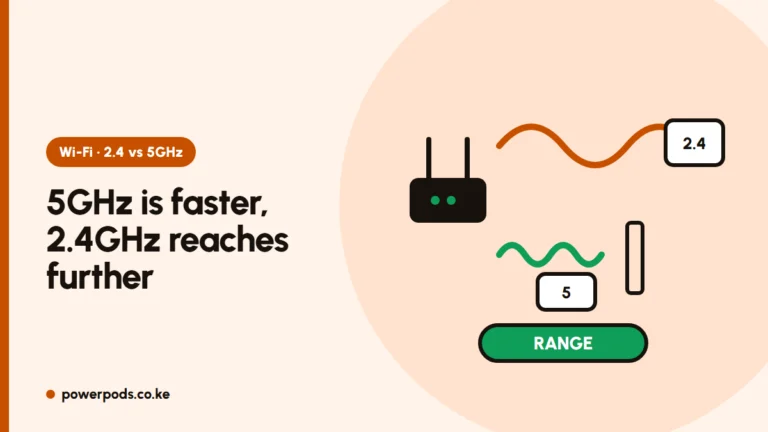
2.4 GHz vs 5 GHz
| Band | Speed | Range | Use for |
|---|---|---|---|
| 2.4 GHz | Slower | Longer, passes walls better | Far rooms, smart plugs, CCTV |
| 5 GHz | Faster | Shorter | TVs, laptops and phones near the router |
Many routers show two network names (for example “Home” and “Home_5G”). Connect devices close to the router to 5 GHz. If there’s only one name, the router picks for you.
Channels and interference
In flats, dozens of neighbours’ networks fight for the same airwaves. – Log into the router (the address is on its sticker) and try channel 1, 6 or 11 on 2.4 GHz, whichever is least crowded. A free Wi-Fi analyser app shows which is busy. – On 5 GHz, leave the channel on Auto or try another if speed drops in the evening. – Update the router firmware and restart it weekly; many ISP routers run better after a reboot.
Too many devices
Every phone, TV, CCTV camera and laptop shares the same connection. – Pause big downloads, cloud backups and game updates when you need speed. – Streaming in 4K on one TV can slow everyone else; drop to HD. – Change the Wi-Fi password if you suspect neighbours are using it, and remove devices you don’t recognise in the router’s settings. – On a laptop, update the Wi-Fi driver and forget and rejoin the network.
When to add an extender or mesh
If one or two rooms stay weak after all the above: – LAN cable to a second access point: the fastest and most reliable. – Mesh system: best for multi-storey or stone-walled homes; units hand you over smoothly. – Extender: cheapest, but often halves speed. Place it halfway between router and dead zone, not in the dead zone. See extend Wi-Fi range and why a Wi-Fi extender is slow.
Keep the router powered during outages: a small router UPS keeps fibre internet running through KPLC blackouts, provided the provider’s equipment outside has power. Comparing packages? See home internet options in Kenya.
Quick answers
Move the router high and central, use 5 GHz for nearby devices, pick a less crowded channel, restart and update the router, and limit heavy downloads.
Fix placement first. For thick walls or several floors, use a mesh system or a cabled access point; an extender is the budget option.
Use 5 GHz near the router for speed and 2.4 GHz for distant rooms and smart devices that need range.