To connect a laptop to WiFi, click the network icon at the bottom-right of the screen (Windows) or top-right (Mac), pick your network and type the password. If no networks appear at all, WiFi is switched off, usually by airplane mode or a keyboard key.
Windows 11 and 10 steps
- Click the network icon (WiFi bars or a globe) next to the clock.
- On Windows 11, click the arrow beside the WiFi button; on Windows 10, the list shows straight away.
- Choose your network, tick Connect automatically, then Connect.
- Type the password exactly (it’s case-sensitive) and click Next.
Forgot the password? Read how to find your WiFi password on a laptop, which uses a laptop that’s already connected.
Using your phone’s hotspot when there’s no home internet works the same way: turn on Mobile Hotspot on the phone (Safaricom or Airtel data), then pick the phone’s name in the laptop’s list. Laptops download big updates over hotspots, so set the connection as metered in Settings > Network & internet > WiFi > your network to protect your bundle.
Mac steps
- Click the WiFi icon in the menu bar at the top right (or open Control Centre).
- Turn WiFi on if it’s off.
- Choose the network and enter the password.
An iPhone signed in to the same Apple ID shows up as Personal Hotspot in the list, with no password needed.
No WiFi networks showing
Work down this list:
- Airplane mode: turn it off in the network panel.
- WiFi key: many laptops (Asus, HP, Lenovo, Toshiba and others) have a function key with an antenna symbol, often pressed with Fn. Some older ones have a physical switch on the side.
- WiFi turned off in Settings: Settings > Network & internet > WiFi > On.
- Restart the laptop and the router.
- Driver problem: right-click Start > Device Manager > Network adapters. If the wireless adapter shows a yellow mark or is missing, right-click > Uninstall device, then restart; Windows reinstalls it. If that fails, download the driver from the laptop maker’s support page using another device or a cable.
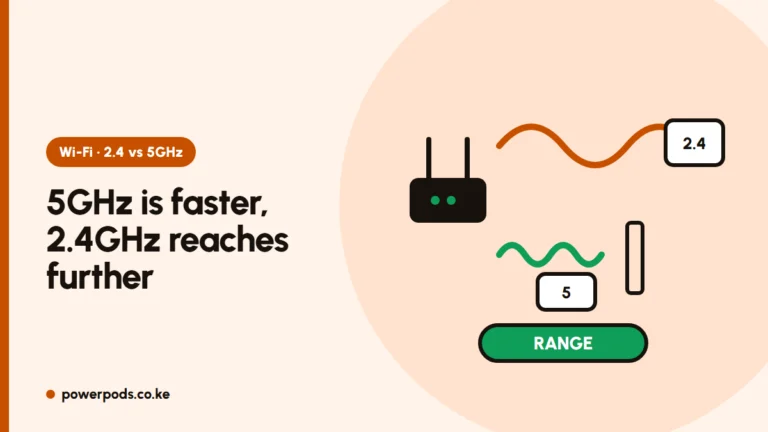
- Only your phone hotspot missing? Set the hotspot band to 2.4 GHz, as some older laptops can’t see 5 GHz networks.
Connected but no internet
If the laptop shows “No internet” or “Connected, secured” but nothing loads:
- Check another device on the same network. If it fails too, the problem is the router or your bundle, not the laptop.
- On a hotspot, confirm the phone itself has data and that you have bundle left.
- Click the network > Forget, then reconnect.
- In Windows, run Settings > Network & internet > Advanced network settings > Network reset, then restart.
- Turn off any VPN.
Connected but painfully slow? See why your internet is so slow, and if you rely on a phone, boosting your hotspot signal helps a lot.
Quick answers
Click the network icon by the clock, choose your network, enter the password and click Connect. On a Mac, use the WiFi icon at the top right.
Usually airplane mode or the WiFi key is off. If not, restart, then reinstall the wireless adapter in Device Manager.
Yes. Turn on Mobile Hotspot on the phone and pick its name in the laptop’s WiFi list, just like any network.