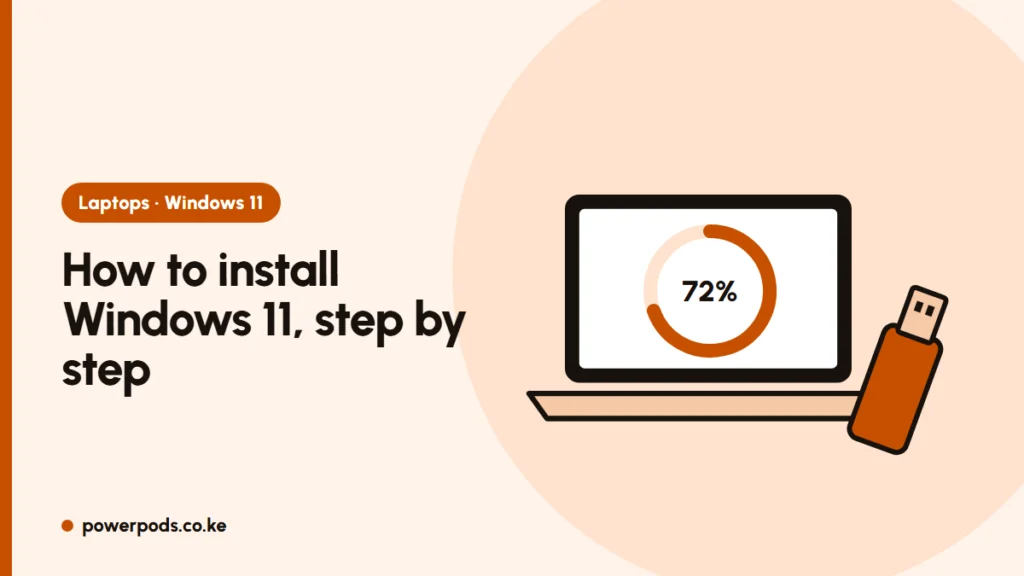
To install Windows 11, the easiest way is Settings > Windows Update, if your PC is eligible. If the upgrade isn’t offered, use Microsoft’s Installation Assistant or a bootable USB stick. Expect about 1–2 hours in total, plus a 5–6 GB download.
Before you start: backup and checks
- Check your laptop qualifies. Run PC Health Check; our Windows 11 system requirements guide explains any failures.
- Back up your files. Upgrades usually keep everything, but not always. See how to back up your computer.
- Free up at least 20–30 GB on the C: drive.
- Plan the data. The download is around 5–6 GB. Use home Wi-Fi or a night bundle rather than daytime mobile data.
- Plug into power. A KPLC outage halfway through can corrupt the install. Use a charged battery and the charger, ideally on a UPS for desktops.
The upgrade from Windows 10 is free on eligible PCs, as long as Windows 10 was activated.
Method 1: Windows Update
Best for most people.
- Open Settings > Update & Security > Windows Update.
- Click Check for updates.
- If you see “Upgrade to Windows 11 is ready”, click Download and install.
- Leave it running; it downloads in the background, then asks to restart.
Method 2: Installation Assistant
Use this if Windows Update doesn’t offer the upgrade but PC Health Check says you pass.
- Search “Windows 11 download” and go to microsoft.com. Never download Windows from other sites.
- Under Windows 11 Installation Assistant, click Download Now.
- Run it, accept the licence and let it download and prepare the upgrade.
- The PC restarts several times. Don’t switch it off.
Method 3: bootable USB
For a clean start, or to install on several PCs.
- You need a USB stick of 8 GB or more (it will be wiped).
- On Microsoft’s download page, use Create Windows 11 Installation Media (the Media Creation Tool).
- Choose USB flash drive and let it build.
- Restart the laptop and boot from the USB (see how to boot from USB).
- Choose Upgrade to keep files, or a custom install to start fresh. Our clean install guide covers the second option.
A clean install erases the drive, so only do it after your backup is done.
First-boot setup
After the final restart, Windows walks you through setup:
- Choose region and keyboard (United States or United Kingdom layout both work for Kenyan keyboards).
- Connect to Wi-Fi. Home and Pro editions usually require internet and a Microsoft account during setup.
- Set a PIN, then choose your privacy settings (you can turn most of them off).
- Run Windows Update again to pull the latest drivers and patches.
Quick answers
Check eligibility, back up, then use Windows Update. If it isn’t offered, use the Installation Assistant or a bootable USB from Microsoft’s site.
Usually 1–2 hours including download, depending on internet speed and whether your laptop has an SSD. Older hard-drive laptops can take longer.